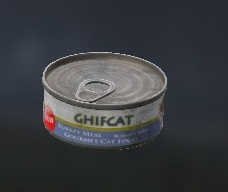
Overview
CatFoodCan
Preview courtesy of Sam's Object Finder
LODs
10
Vertices
656
Faces
528
Textures
2
Materials
2
Size (X × Y × Z)
0.374 × 0.162 × 0.401 m

CfgModels · food_can — Sections

  • camoground
  • zbytek

ODOL v54 · 29,956 bytes · Skeleton bones: 0 · Sections: 2

ODOL Flags 38

Size

size_x
0.374 m
size_y
0.162 m
size_z
0.401 m

Flags

autocenter
0
lockautocenter
0
canocclude
0
canbeoccluded
1
disablecover
1
forcenotalpha
0
prefershadowvolume
0
allowanimation
0
canblend
0
isfrequent
0

Model

viewdensity
-10
boundingsphere
0.515540242
geometrysphere
0.078263335
sbsource
Visual
shadowoffset
minshadow
0

Mass

mass
0.400000036
massreciprocal
2.499999762
armor
200
armorreciprocal
0.005

Map

maptype
22
map
hide

Bounds

bboxminposition
-0.330773503, -0.002104323, -0.361568809
bboxmaxposition
0.042943876, 0.16012077, 0.039718762
bboxminvisual
-0.330773503, -0.002104323, -0.361568809
bboxmaxvisual
0.042943876, 0.16012077, 0.039718762

Centers

boundingcenter
0, 0, 0
geometrycenter
0.000423215, 0.054196395, 0.000000579
centerofmass
0.000423216, 0.054196395, 0.000000579
aimingcenter
0.000423215, 0.054196395, 0.000000579

ByteIndices

memory
6
geometry
5
geometryfire
9
geometryview
8
landcontact
7
Level of Detail 10
0.000 132 verts 96 faces 1 tex
Resolution
0
Vertices
132
Faces
96
Height
0.1079

Named selections (2)

  • camoground
  • zbytek

Textures

  • dz\gear\food\data\deez_beans_co.paa

Materials

  • dz\gear\food\data\food_can.rvmat
1.000 66 verts 44 faces 1 tex
Resolution
1
Vertices
66
Faces
44
Height
0.1079

Named selections (2)

  • camoground
  • zbytek

Textures

  • dz\gear\food\data\deez_beans_co.paa

Materials

  • dz\gear\food\data\food_can.rvmat
2.000 34 verts 20 faces 1 tex
Resolution
2
Vertices
34
Faces
20
Height
0.1079

Named selections (2)

  • camoground
  • zbytek

Textures

  • dz\gear\food\data\deez_beans_co.paa

Materials

  • dz\gear\food\data\food_can.rvmat
3.000 18 verts 6 faces 1 tex
Resolution
3
Vertices
18
Faces
6
Height
0.1079

Named selections (2)

  • camoground
  • zbytek

Textures

  • dz\gear\food\data\deez_beans_co.paa

Materials

  • dz\gear\food\data\food_can.rvmat
View-Pilot 361 verts 320 faces 1 tex
Resolution
1100
Vertices
361
Faces
320
Height
0.1079

Named selections (1)

  • camoground

Textures

  • dz\gear\food\data\tactical_bacon_co.paa

Materials

  • dz\gear\food\data\food_can.rvmat
Geometry 8 verts 12 faces 0 tex
Resolution
9999999827968
Vertices
8
Faces
12
Height
0.1087

Named selections (1)

  • component01

Named properties (1)

Name Value
autocenter 0
Memory 12 verts 6 faces 0 tex
Resolution
9.999999869911E+14
Vertices
12
Faces
6
Height
0.1611

Named properties (1)

Name Value
lodnoshadow 1
LandContact 1 verts 0 faces 0 tex
Resolution
1.9999999739822E+15
Vertices
1
Faces
0

Named properties (1)

Name Value
lodnoshadow 1
View Geometry 12 verts 12 faces 0 tex
Resolution
6.0000000561644E+15
Vertices
12
Faces
12
Height
0.1111

Named selections (1)

  • component01

Materials

  • dz\data\data\penetration\metalplate.rvmat
Fire Geometry 12 verts 12 faces 0 tex
Resolution
6.9999999760466E+15
Vertices
12
Faces
12
Height
0.1111

Named selections (1)

  • component01

Materials

  • dz\data\data\penetration\metalplate.rvmat
model.cfg
class CfgModels
{
	class Default
	{
		Sections[] = {};
		SectionsInherit = "";
		SkeletonName = "";
	};
	class food_can: Default
	{
		Sections[] =
		{
			"camoground",
			"zbytek"
		};
	};
};
CfgSkeletons 0

No SkeletonBones in model.cfg.

CfgModels · food_can 2
  • camoground
  • zbytek
Textures 2
  • dz\gear\food\data\deez_beans_co.paa
  • dz\gear\food\data\tactical_bacon_co.paa
Materials 2
  • dz\data\data\penetration\metalplate.rvmat
  • dz\gear\food\data\food_can.rvmat

How to view in 3D

View the full in-game model (all LODs, materials, and selections) in Object Builder and Buldozer from DayZ Tools.

Add a proxy in Object Builder

  1. Open Object Builder from DayZ Tools.
  2. File → New to start a blank map (or open a map you already use for previews).
  3. Create → Proxy
  4. Enter the model path:
    \dz\gear\food\food_can.p3d
  5. Confirm — the proxy appears in the scene. Select it and move it above the ground if needed.

Launch Buldozer (3D preview)

  1. Press the Play button on the Object Builder toolbar — Buldozer opens with your proxy model in the scene.

Buldozer controls

  • Mouse: look around.
  • W / A / S / D: move.
  • Q / E: move down / up.
  • Shift: move faster.
  • Esc: close Buldozer and return to Object Builder.

Path in this index: DZ\gear\food\food_can.p3d — use the copy button in the page header to paste it elsewhere.